
How to Export Your Account Data on Bitget?
How to Export Your Account Data on Bitget?
[Estimated reading time: 10 minutes]
Types of data available for export
Before exporting, choose the data type that matches your purpose.
|
Data type
|
Functions
|
Best used for
|
Where to Export
|
File format
|
|
Transaction history
|
Records of asset movements in your account. This data records transaction types, balance changes for each token, and the corresponding product category.
|
Checking deposits, withdrawals, transfers, fees, and balance changes.
|
Only available in the order page
|
CSV o Excel
|
|
Order history
|
Records of your trading and product orders. This data includes the order time, trading pair, category, direction, price, amount, filled quantity, average price, trading volume, status, order ID and fees.
|
Reviewing trades, order status, order details, and executed orders.
|
Makukuha sa:
|
PDF, CSV or Excel
|
|
Account statement (asset overview)
|
Ang pahayag ng account (pangkalahatang-ideya ng asset) ay nagbibigay ng pangkalahatang-ideya ng mga asset at halaga ng equity ng iyong account, na nagbibigay-daan sa iyong suriin ang mga balanse ng iyong wallet sa iba't ibang uri ng account para sa isang napiling petsa.
|
Pagkuha ng ulat ng buod ng asset para sa isang napiling petsa.
|
Only available in the data export page
|
PDF
|
|
Account statement (account ownership)
|
Ang pahayag ng account (pagmamay-ari ng account) ay nagbibigay ng impormasyon ng iyong may-ari ng account at mga detalye ng account, kabilang ang UID, impormasyon ng KYC, legal na pangalan, numero ng ID/passport, nasyonalidad, tirahan, petsa ng paggawa ng account, at mga detalye ng P2P account.
|
Pag-verify ng pagmamay-ari ng account at pagsusuri ng impormasyon sa profile ng account.
|
Makukuha lamang sa pahina ng account na
|
PDF
|
Transaction history
Transaction history shows how assets move in and out of your account. This may include deposits, withdrawals, transfers, trading fees, and other balance changes.
You can export transaction history for the following accounts:
• Spot: Asset History – Spot
• Margin: Asset History – Margin
• Futures: Asset History – Futures
• Onchain: Asset History - Onchain
How to export transaction history
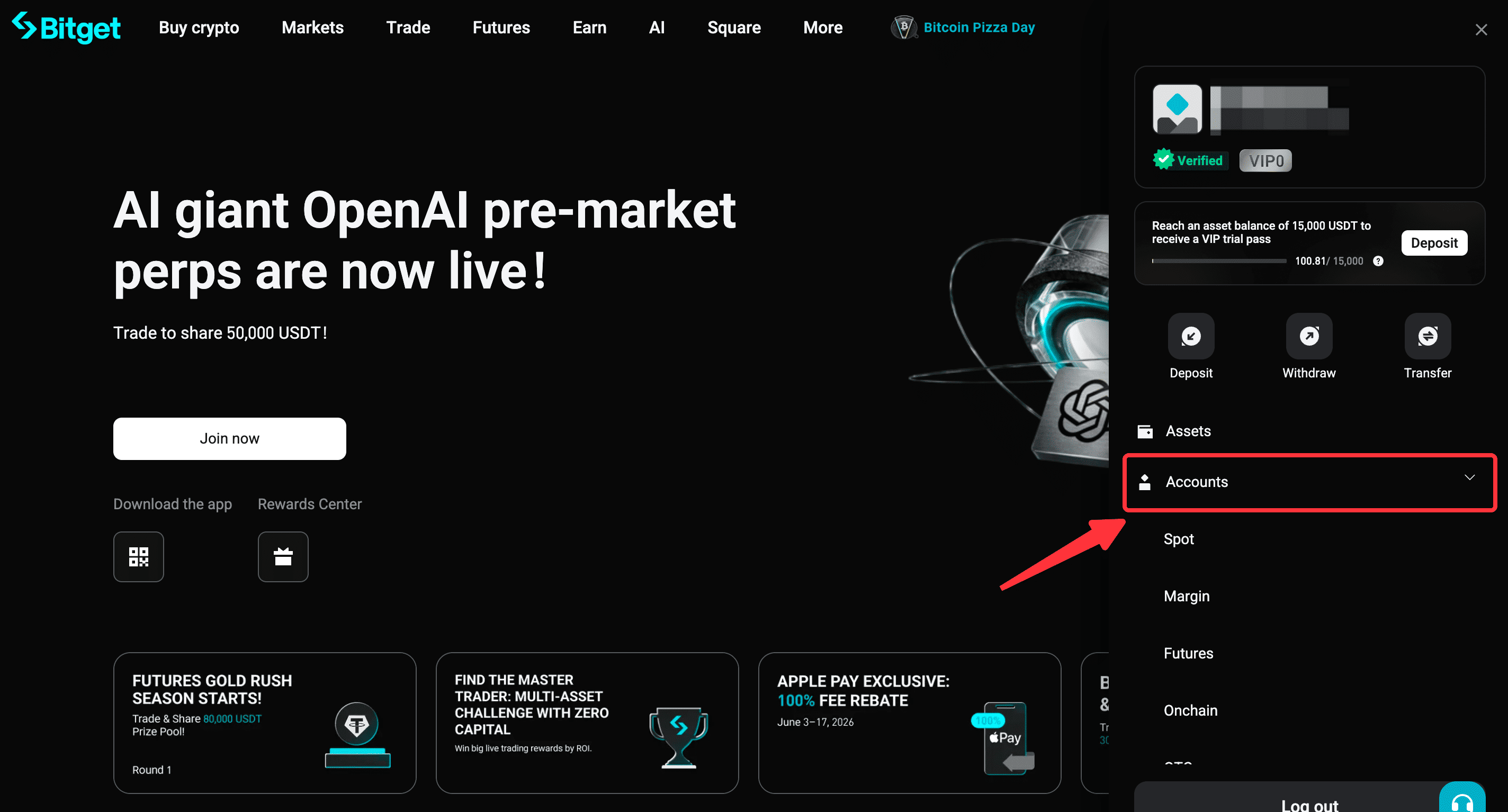
Step 1: Navigate to your account section
1. Click the profile icon in the top-right corner.
2. Hover over Accounts, then select the account type for the data you want to export.
Example: Accounts → Spot
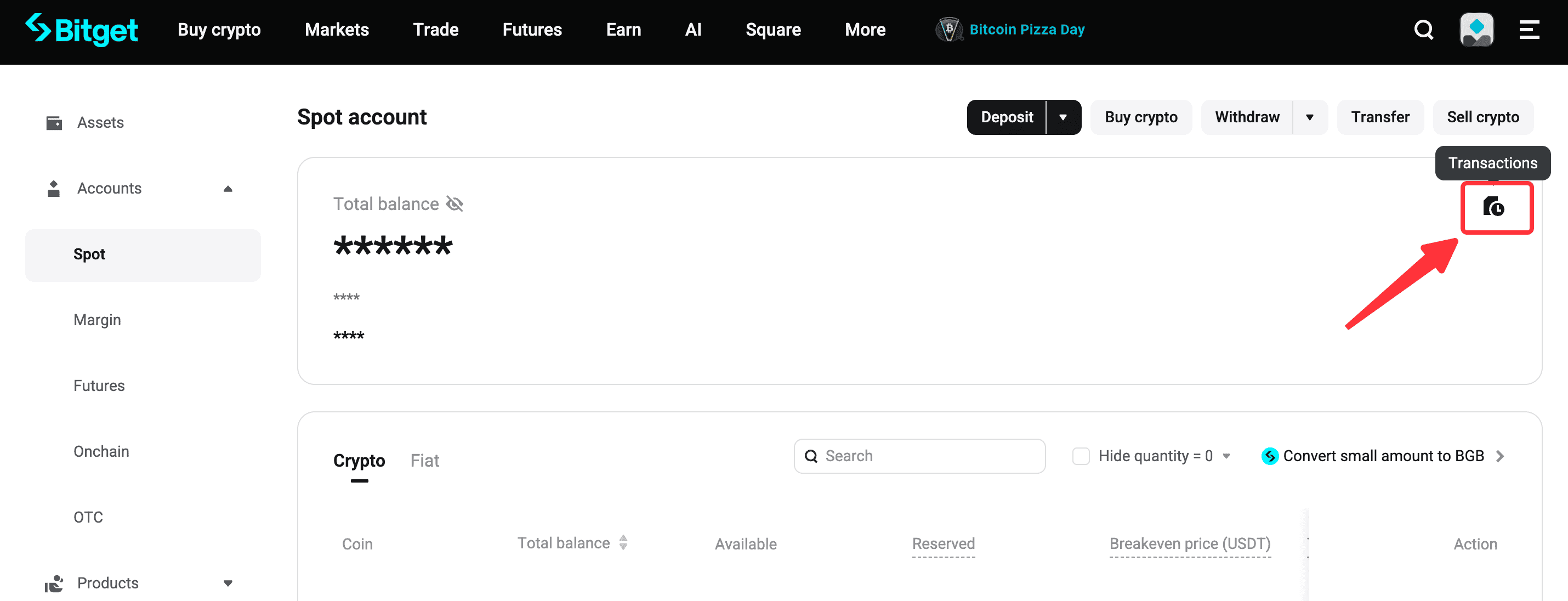
Step 2: Select transaction history
1. Click the transaction history icon on the right side of the page.
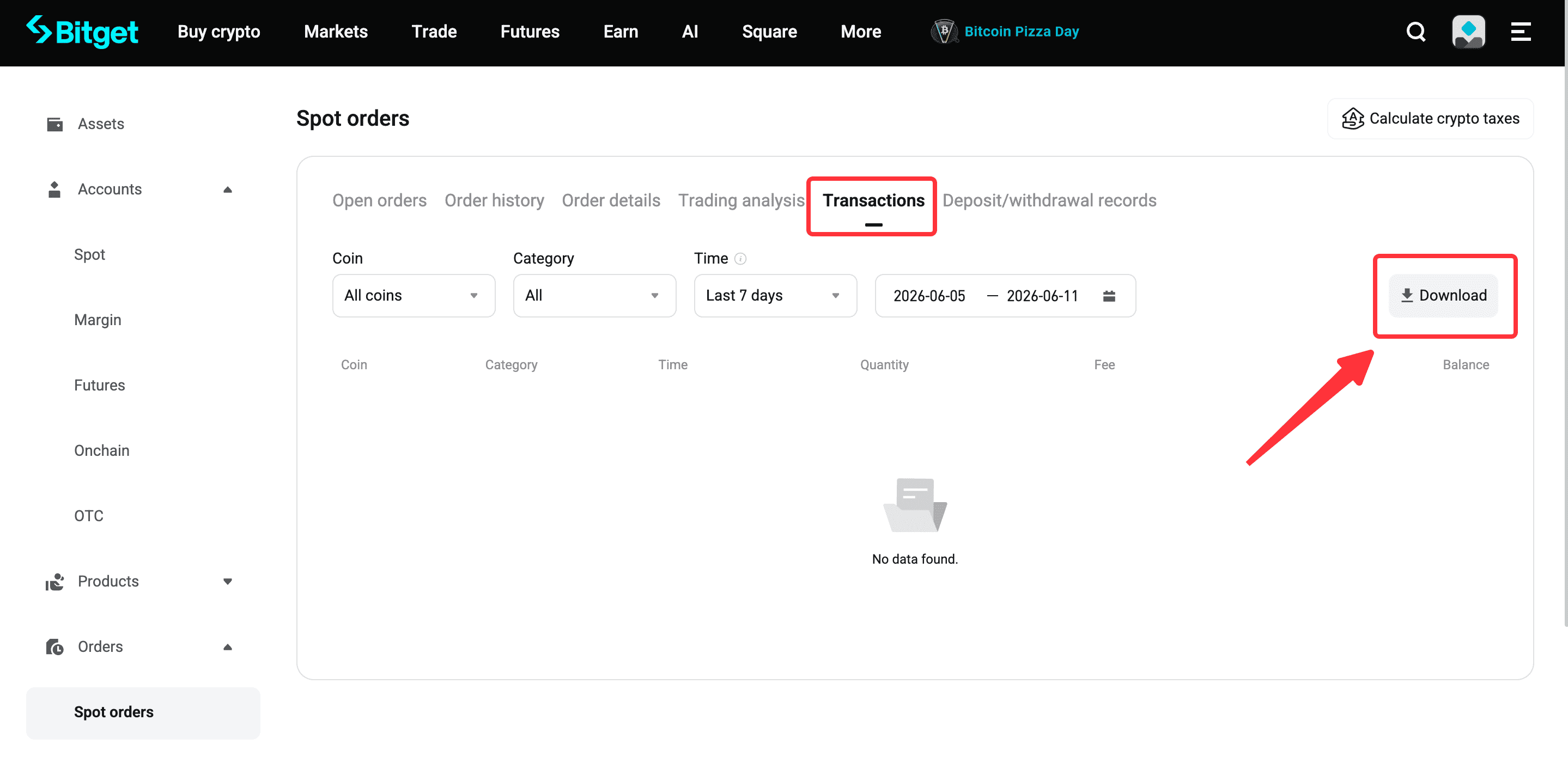
Step 3: Enter download page
1. Click download on the transactions tab.
Step 4: Set the export parameters
1. Select the desired time range and trading pair.
2. Users can export data up to 100 times per month.
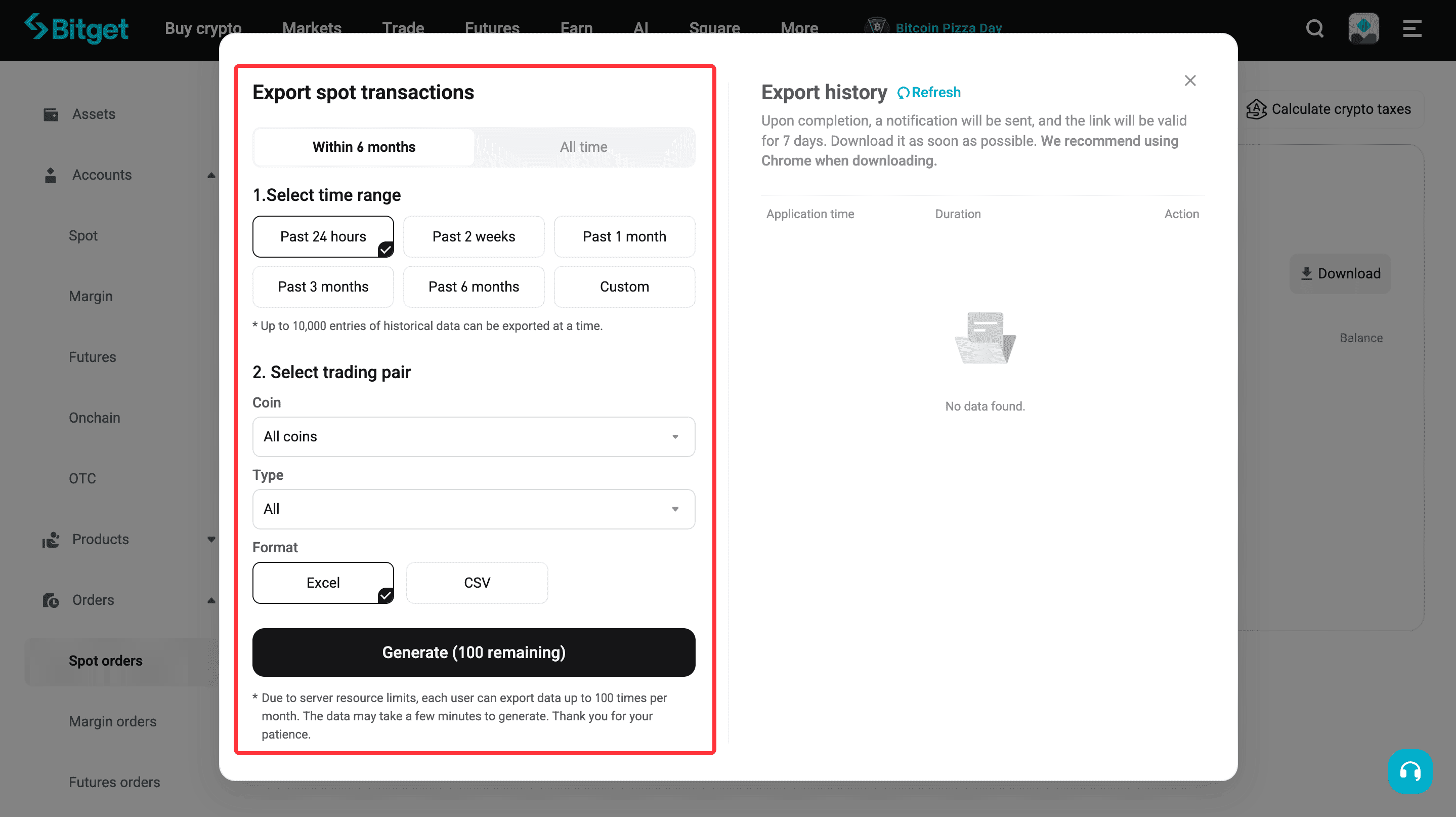
Step 5: Download the exported file
1. Click Generate to start generating the report.
2. Once the report is generated, you will receive a notification.
3. The download link is valid for 7 days. Please ensure the file is downloaded before the link expires. Chrome is recommended for the best download experience.
Order history
Ipinapakita ng history ng order ang iyong mga talaan ng kalakalan at order ng produkto. Makakatulong ito sa iyo na suriin ang katayuan ng order, mga detalye ng order, at aktibidad ng transaksyon.
The following order history types are supported for export: Spot orders, Margin orders, Futures orders, CFD orders, Onchain orders, OTC history, Convert history, Crypto Loans history, Earn history, and Voucher history.
How to Export Order History
Option 1: Export from the data export page
Step 1: Go to the order history export page
1. Log in to your Bitget account on the website.
2. Go to the order history in data export page.
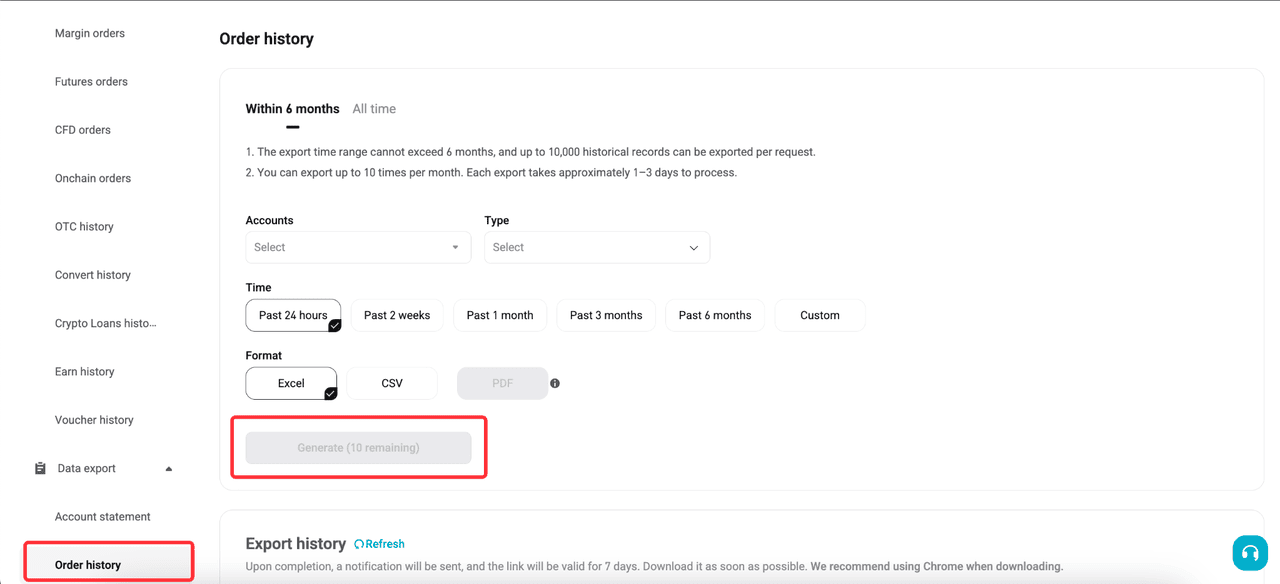
3. Choose Within 6 months or All time based on the data you need.
4. If you select Within 6 months, the export time range cannot exceed 6 months, and up to 10,000 historical records can be exported per request.
5. Select the account from the Accounts dropdown menu.
6. Select the order type from the Type dropdown menu.
7. Choose a preset time range, such as Past 24 hours, Past 2 weeks, Past 1 month, Past 3 months, or Past 6 months. You can also choose Custom to select a specific time range.
8. Select the file format you want to export. Available formats may include Excel, CSV, or PDF, depending on the selected order type.
9. Click Generate to create the export file. Once the export is complete, you will receive a notification.
10. Click Refresh, then click Download in the export history section to download the file.
Option 2: Export from the order page
Step 1: Go to the order history page
1. Log in to your Bitget account on the website.
2. Go to the order page.
Step 2: Choose the order type
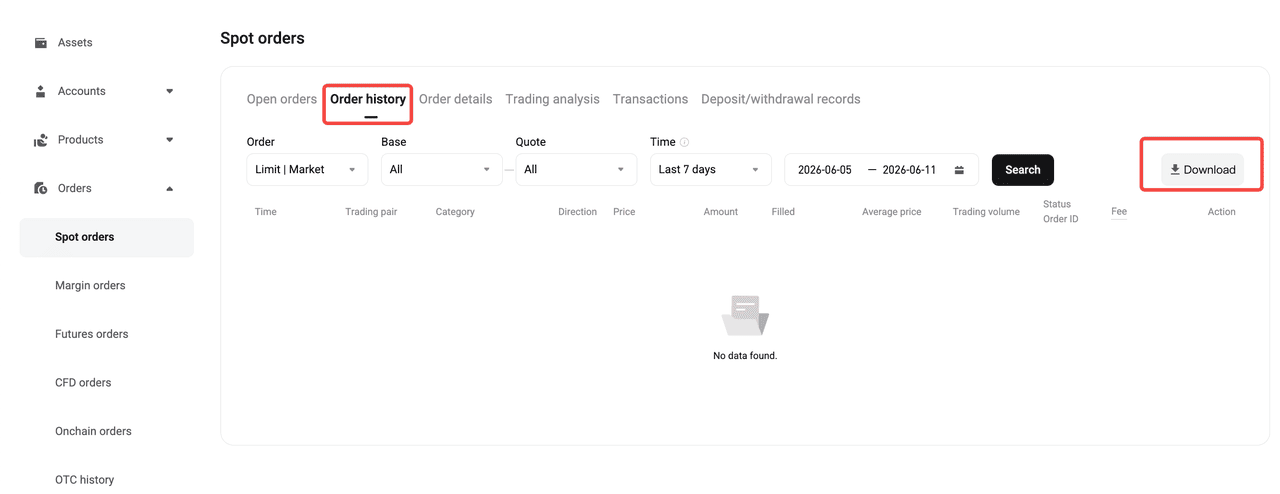
1. From the left-side menu, choose the order type you want to export.
Step 3: Select Order history
1. After choosing the order type, make sure you are on the Order history tab.
2. Use the filters to select the order type, trading pair, and time range if needed.
Step 4: Click Download
1. Click Download on the right side of the page.
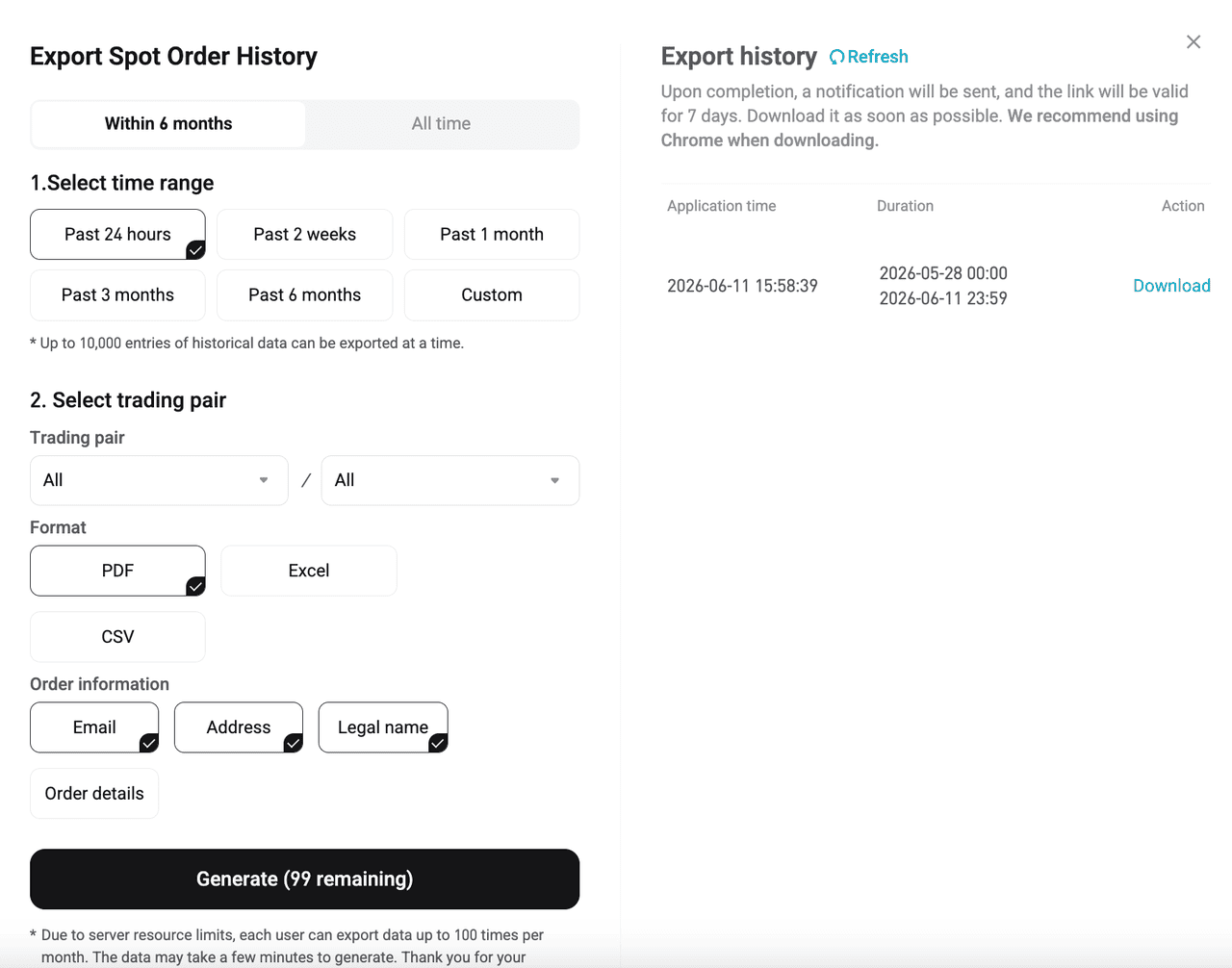
2. The export window will appear.
Step 5: Select the export details
1. Choose the time range you want to export.
2. Select the trading pair.
3. Choose the file format.
4. Select the order information you want to include.
Step 6: Generate and download the file
1. Click Generate to create the file.
2. Once the export is complete, you will receive a notification.
3. Click Refresh, then click Download to download the file.
Account statement (asset overview)
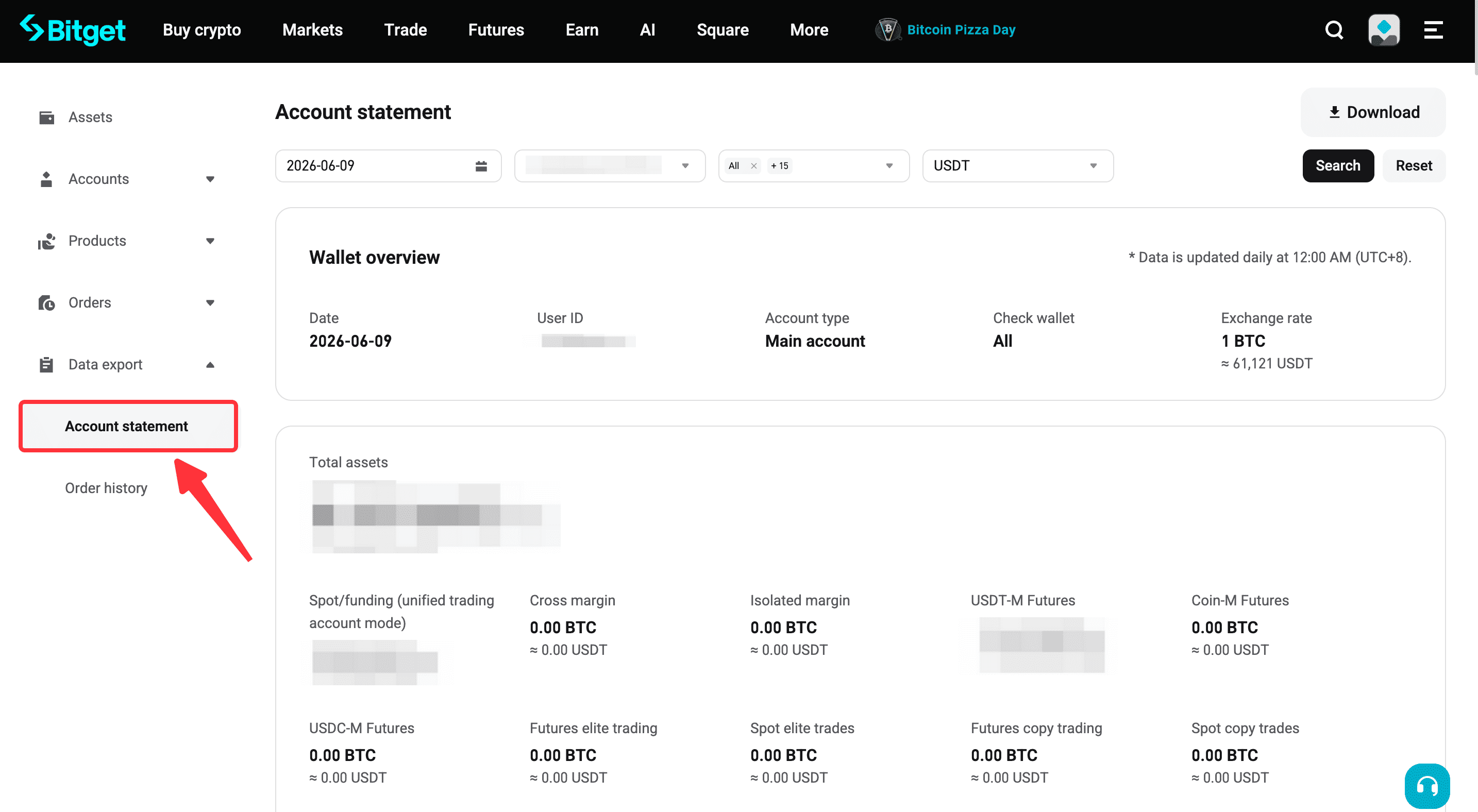
Pinapayagan ka na ngayon ng Bitget na i-export ang iyong account statement (pangkalahatang-ideya ng asset) para sa isang partikular na petsa , na sumasaklaw sa maraming uri ng account sa isang ulat, kabilang ang Spot, OTC, Cross Margin, atbp.
• Link: Pahayag ng pag-export ng account (pangkalahatang-ideya ng asset)
• Available format: PDF
• Functionality: Select the date you want to generate a snapshot of your account. This is not a historical range export. It only generates the statement for the day you choose.
• Paalala: Ang pahayag ng account (pangkalahatang-ideya ng asset) ay sumusuporta lamang sa datos mula Hulyo 18, 2025 pataas.
Account statement (account ownership)
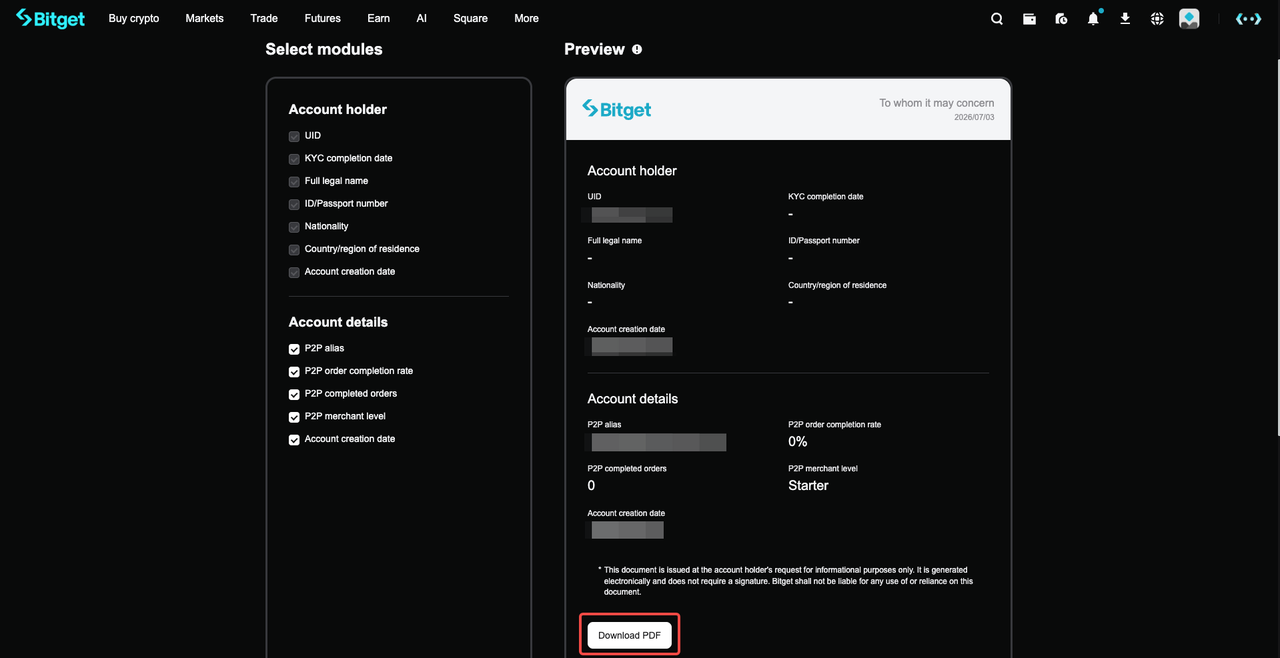
Binibigyang-daan ka ng Bitget na i-export ang iyong account statement (pagmamay-ari ng account) upang tingnan at i-verify ang impormasyon ng may-ari ng account at mga detalye ng account sa iisang ulat, kabilang ang UID , impormasyon ng KYC, legal na pangalan, numero ng ID/passport, nasyonalidad, bansa/rehiyon ng paninirahan, petsa ng paglikha ng account, at mga detalye ng P2P account.
• Link: I-export ang pahayag ng account (pagmamay-ari ng account)
• Available format: PDF
• Paggana: Bumuo ng isang pahayag na nagpapakita ng pagmamay-ari ng iyong account at impormasyon sa profile ng account. Ginagamit ang pahayag na ito upang beripikahin kung kanino pagmamay-ari ang account at suriin ang mga kaugnay na detalye ng account.
• Paalala: Ang pahayag ng account (pagmamay-ari ng account) ay naglalaman ng personal at sensitibong impormasyon. Pakitago ito nang ligtas at ibahagi lamang ito kung kinakailangan.
FAQs
1. Can I export my Bitget account data on the app?
Hindi. Ang feature na pag-export ng data ay makukuha lamang sa website ng Bitget. Hindi ito sinusuportahan sa Bitget app.
2. What types of account data can I export?
Maaari mong i-export ang kasaysayan ng transaksyon, kasaysayan ng order, at mga pahayag ng account. Itinatala ng kasaysayan ng transaksyon ang mga paggalaw ng asset, itinatala ng kasaysayan ng order ang mga order sa kalakalan at produkto, at ang mga pahayag ng account ay nagbibigay ng pang-araw-araw na snapshot ng mga asset ng iyong account.
3. What is the difference between transaction history and order history?
Ipinapakita ng history ng transaksyon ang mga paggalaw ng asset sa iyong account, tulad ng mga deposito, pag-withdraw, paglilipat, bayarin, at mga pagbabago sa balanse. Ipinapakita ng history ng order ang iyong mga talaan ng order sa pangangalakal at produkto, tulad ng oras ng order, pares ng pangangalakal, direksyon, presyo, halaga, dami ng napunan, status, order ID, at mga bayarin.
4. Which transaction history types can I export?
Maaari mong i-export ang kasaysayan ng transaksyon para sa mga Spot, Margin, Futures, at Onchain account.
5. Which order history types can I export?
Maaari mong i-export ang mga Spot order, Margin order, Futures order, CFD order, Onchain order, OTC history, Convert history, Crypto Loans history, Earn history, at Voucher history.
6. What file formats are supported?
Maaaring i-export ang kasaysayan ng transaksyon sa format na CSV o Excel. Maaaring i-export ang kasaysayan ng order sa PDF, CSV, o Excel format. Ang mga pahayag ng account ay iniluluwas sa format na PDF.
8. How long is the download link valid after the export is generated?
After the export is complete, the download link is valid for 7 days. Please download the file before the link expires. We recommend using Google Chrome for the best download experience.
*Ang anunsyong ito ay sensitibo sa oras. Pansinin ang petsa ng paglalathala. Hindi mananagot ang platform para sa anumang direkta o di-tuwirang pagkalugi na nagmumula sa pagbabago ng mga kalagayan o lipas na nilalaman.